
 Riskrunner
Inline field editing#
While in an active review, use the inline editor to update a field value with a dedicated modal that gives you all the details you need.
Open the editor#
Open a definition or hazard in an active review, then click any displayed field. This will bring up the inline field editor as a dialog. It has three parts, in the center you can select a new value for the field (depending on the type of field this could be a text, number, select or matrix) along with a comment to explain why a value was picked. On the right is a panel showing more details of the entity (e.g. the barrier or threat). On the left is a panel showing signals. Depending on the signal field type, evidence appears as a chart or a list of signals. You can use this signal data to support your decision.
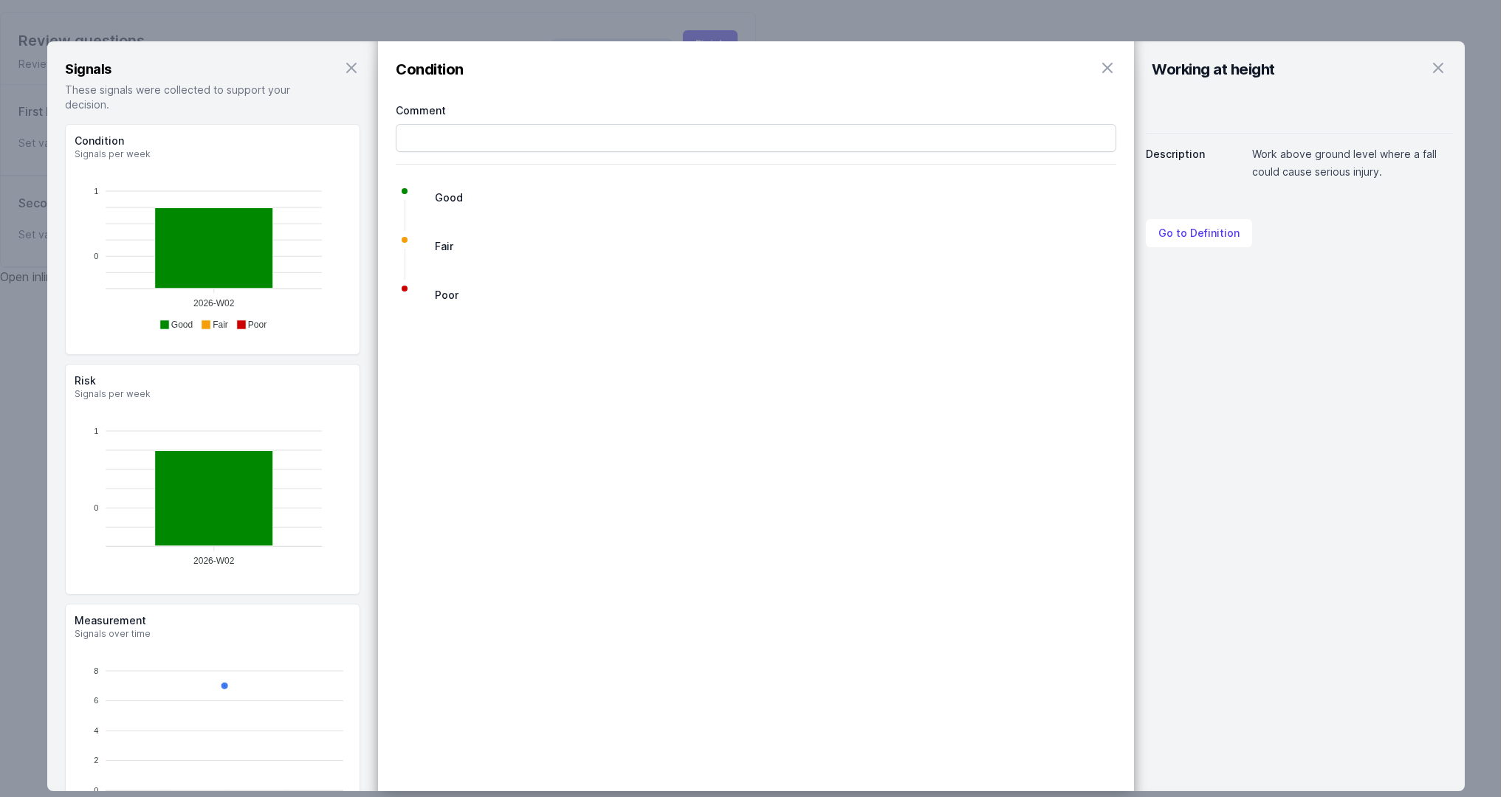
The example shows the Condition field editor. Its supporting signals appear in the Signals panel.
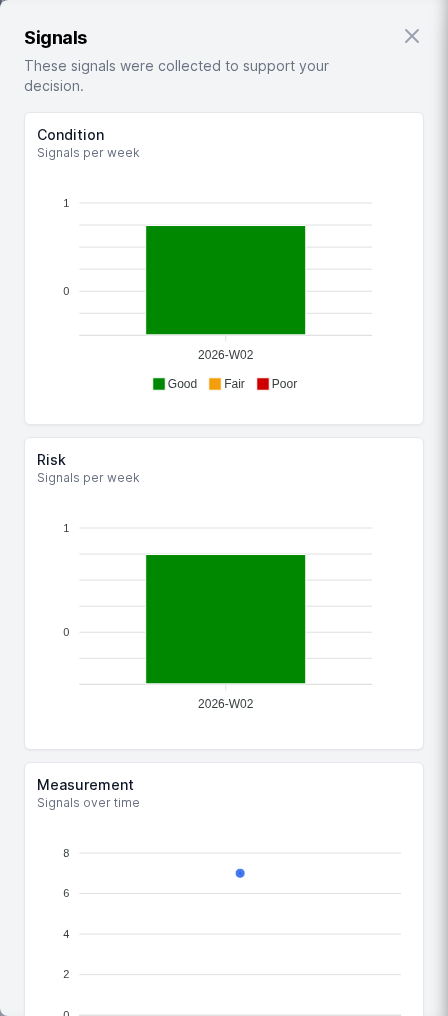
The position of the panels depend on the width of your browser window. If you’re on a narrow screen, the signals and entity details will show below the center panel.
Saving marks the value as reviewed and marks the applicable signal data as evidence used. Closing the editor without saving discards your changes.