Riskrunner
Signals#
Signals help your organisation collect supporting evidence for field values. For example:
Self-assurance results can support decisions about barrier performance.
Expert opinions can support decisions about the residual risk of a consequence.
Threat occurrence reports can support decisions about threat contribution.
The goal is to support data-driven decisions and reduce reliance on expert judgement alone. Signals don’t change field values automatically. Instead, a reviewer uses the signals to decide the value.
There are several steps to take to start using signals, which we’ll cover below.
Configuration#
The first step is to configure signals. Configuration is done by an admin or assessment manager.
Step 1: Signal fields#
A signal field defines the evidence you want to collect and the assessment field it supports. Choose from four types: text, number, select, or matrix. The signal field can use a different type from the field it supports. For example, collect text inspection notes to support a select field for barrier performance.
Open Fields in the assessment menu.
Select the field you want to support with evidence.
Click Add Signal field and choose a type.
Enter a name and description, configure any options or matrix, then save.
Note
A signal field is a special type of field, but beyond how they’re used, the way you create them is very similar to a normal field.
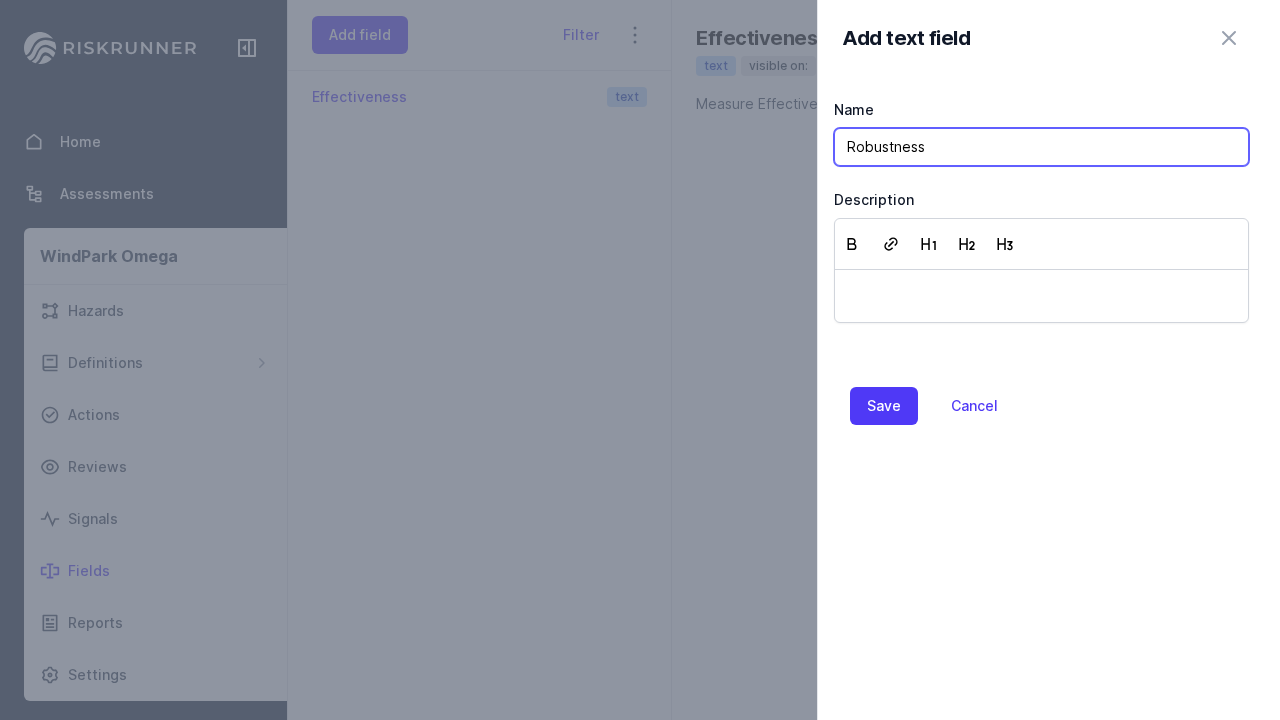
The signal field appears under the field it supports. See Fields for more about field types and configuration.
Step 2: Adding receivers#
A receiver groups one or more signal fields into a form for contributors to fill in. It also controls which entities can receive signals through that form.
Open Signals in the assessment menu and click Add Receiver.
Enter a name and description that explain what contributors should report.
Select the signal fields to collect, then click Save.
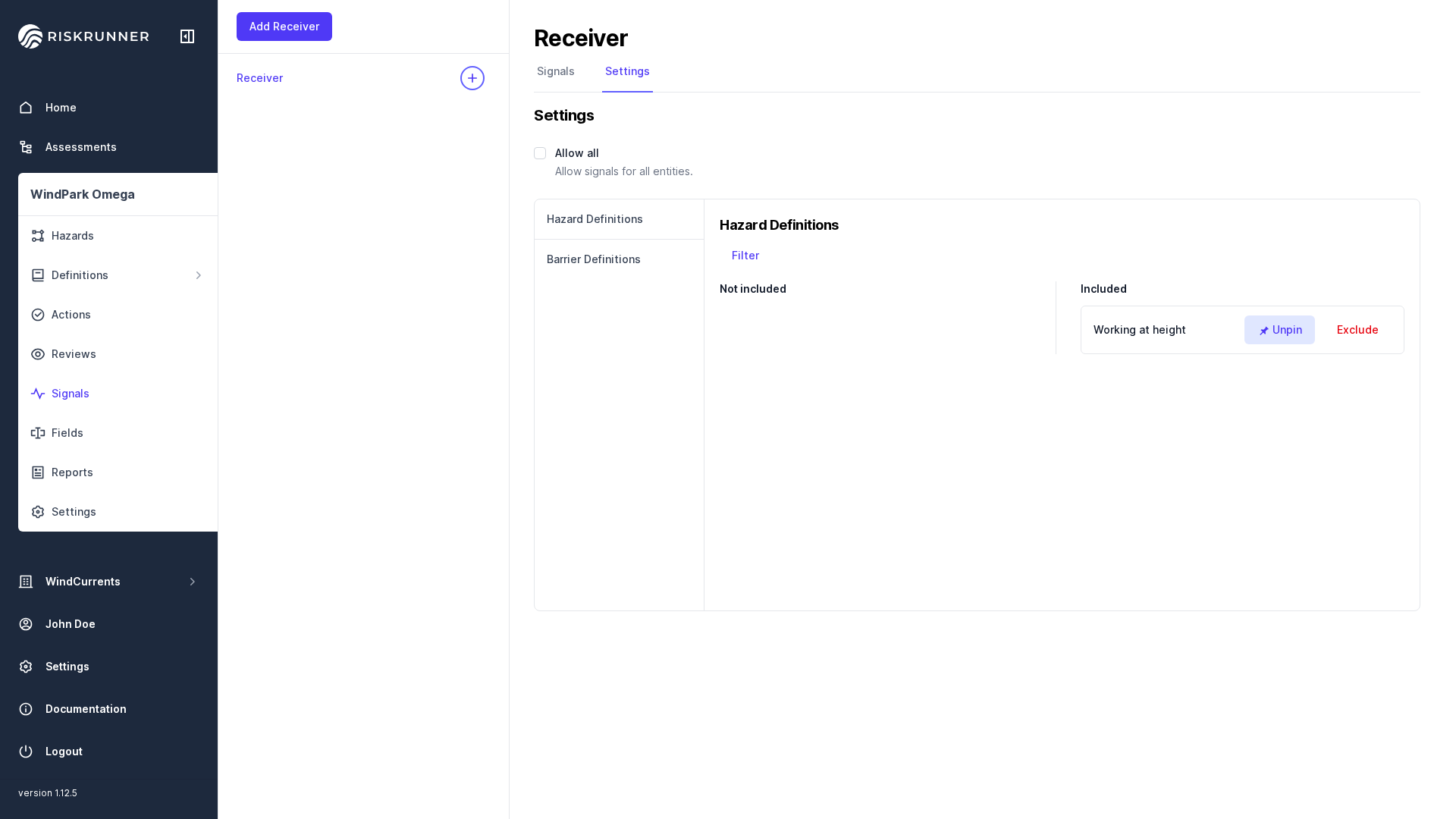
In the receiver’s Settings, select an entity type and Include the entities you want to collect signals for.
Use Pin to keep an included entity visible when contributors search or filter the form. Use Exclude to remove an entity from the receiver’s scope. To collect signals for every compatible entity, select Allow all. The types available depend on the fields supported by the receiver’s signal fields.
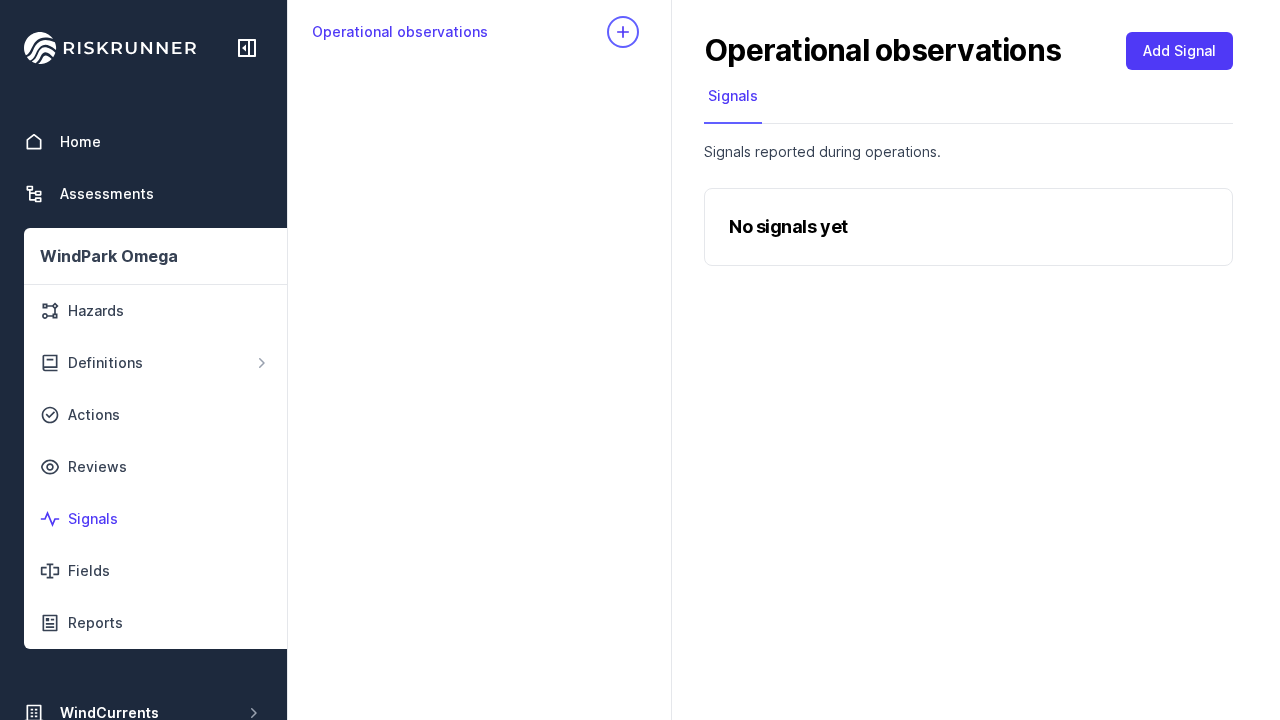
A receiver page lists its signals and provides an Add Signal button. Contributors see this page without the configuration controls.
Creating signals#
Once the receivers are created, contributors can submit signals through those receivers.
Step 3: Adding signals from home or receiver#
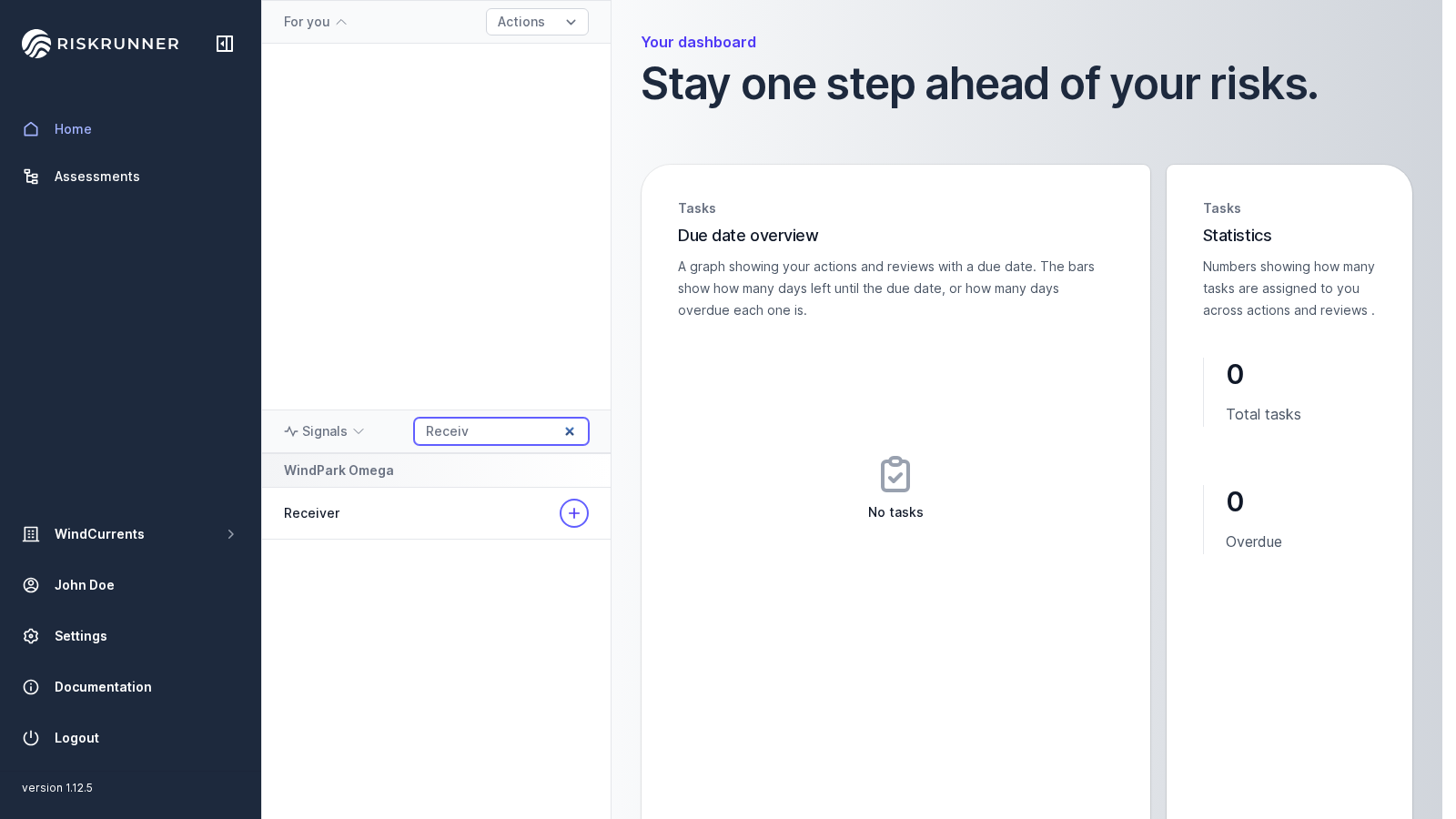
On the homepage, open the Signals section and find the receiver you need. You can search by receiver or assessment name. Click Add Signal (the plus icon) beside the receiver name to open the form on the homepage.
You can also open the assessment’s Signals page, select a receiver, and click Add Signal there. Find the relevant entity, enter the data in its signal fields (and give an optional comment to explain the choice), then click Save.
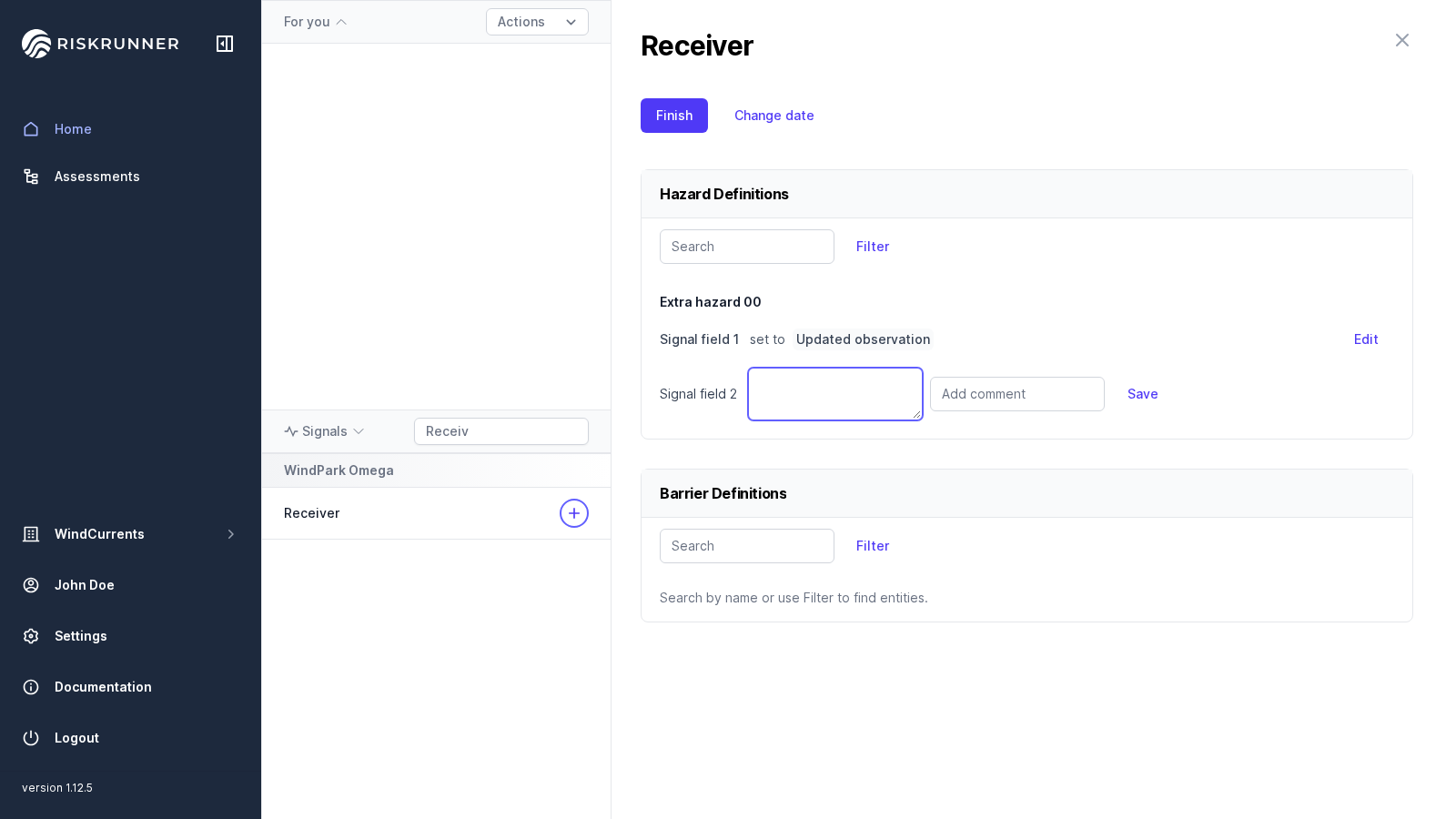
Use Change date if the signal happened at a different time. Otherwise, finishing the signal sets its date to the current time. Click Finish when you have completed your signal. Closing a signal without finishing leaves saved signals in a draft. Drafts don’t appear as review evidence.
Using signals during a review#
Step 4: Using signals in a review#
Set the review period before reviewing field values. Enter both start and end dates. Only finished signals with signal dates inside that period appear as evidence.
In an active review, click the field value to open the inline editor. Use the evidence shown in the signals panel to choose a value, and add a comment explaining your decision.
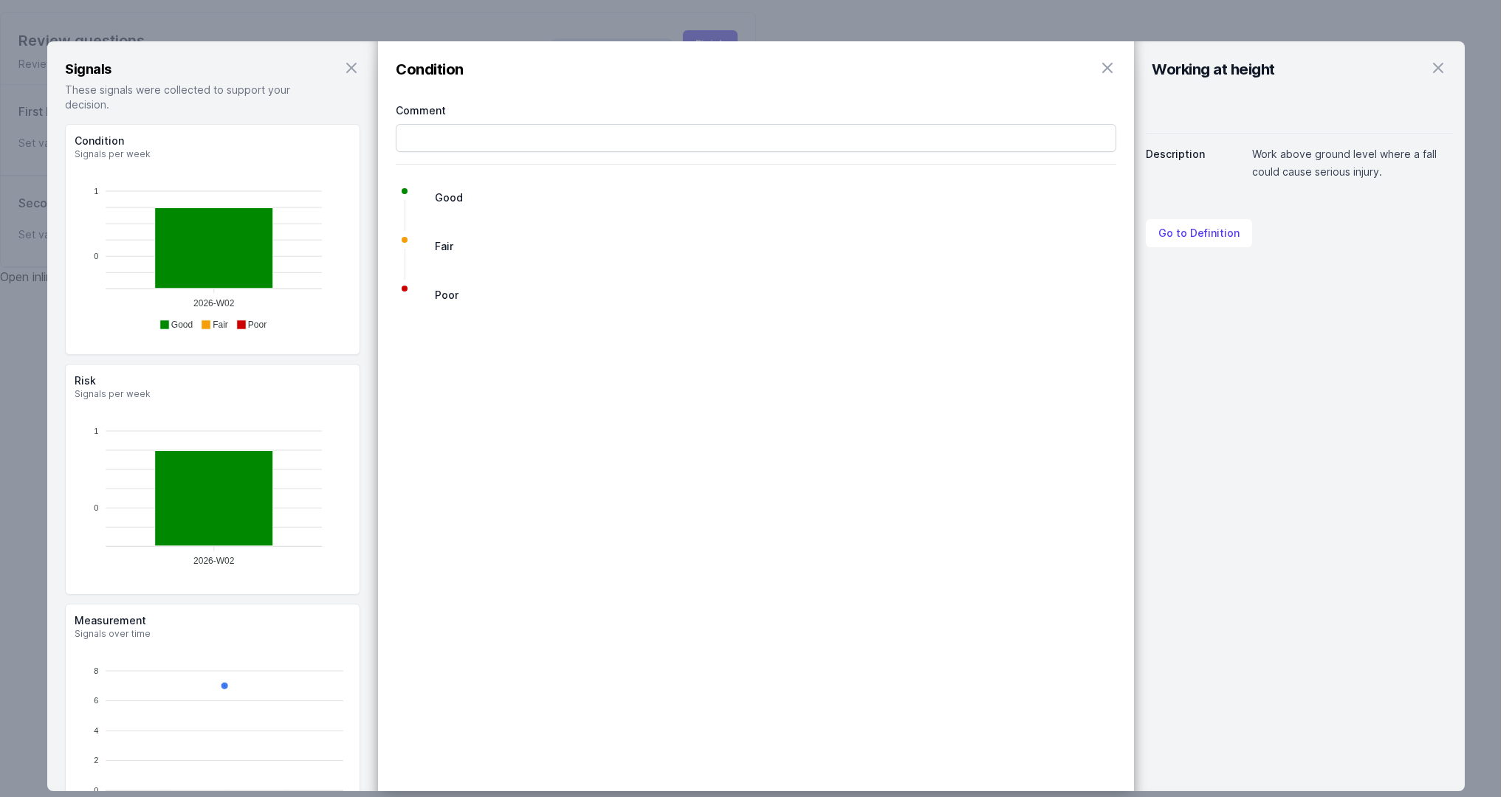
The Signals panel appears beside or below the editor, depending on the width of your browser window.
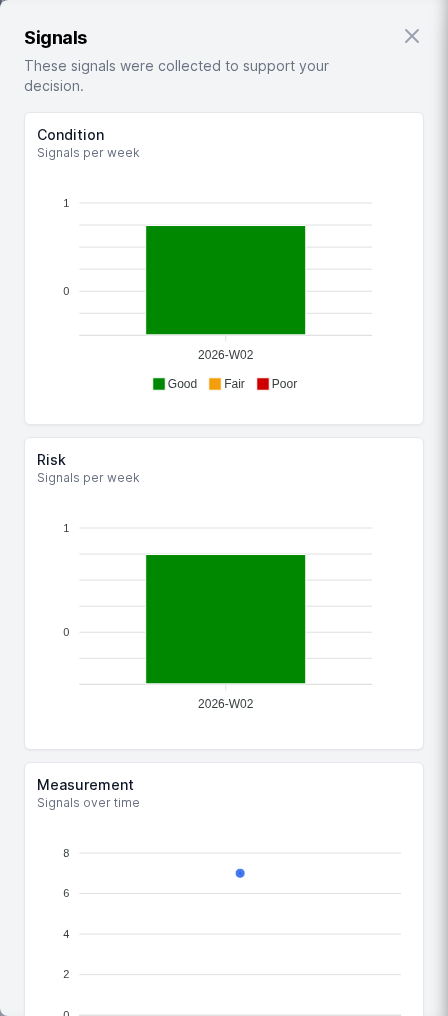
When saving a field value, any signal data that was shown is marked as supporting evidence for that choice. If you later change the review period, evidence from earlier saves remains attached, so make sure to set the review period correctly before making changes to the field values in the review.
Step 5: Viewing history with signal data#
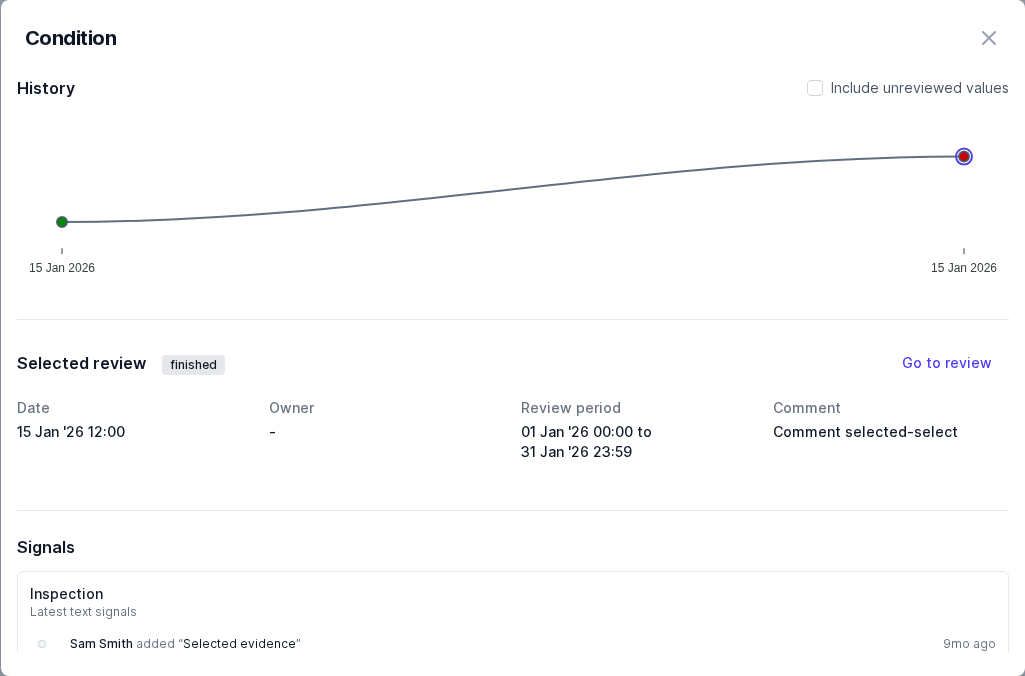
After finishing the review, click any field value to open its history. Select a history point to see the review, comment, and stored signal evidence for that version. See Field value history for more about comparing versions.